Reading Time: 8 min

How to Convert PDF to Word (DOCX) Free Without Paying for Adobe Acrobat

Document Processing
February 26, 2025

Need to edit a read-only PDF document? Here is how to convert PDF to editable Microsoft Word (DOCX) format for free without expensive Adobe subscriptions or privacy risks.
How to Convert PDF to Word (DOCX) Free Without Paying for Adobe Acrobat

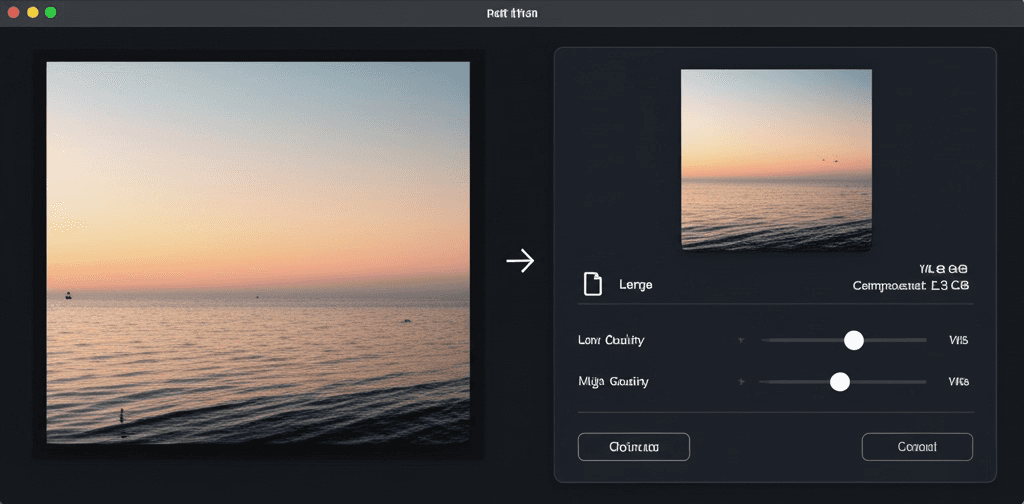
We've all been there: someone emails you an agreement, an invoice, a resume, or a research paper saved as a PDF, and you need to make urgent edits. But when you try opening it, the text is locked down. Adobe Acrobat Pro wants to charge you $19.99 to $29.99 per month just to unlock editing, while many online converters slap intrusive watermarks on your document or force you to sign up. In this guide, you'll learn how to convert PDF to editable Word (DOCX) format completely free, securely, and in seconds.

Why Is Converting PDF to Word Technically Challenging?

To understand why many converters scramble formatting, it helps to understand how PDFs work compared to Word documents:

  • PDFs are Digital Paper (Fixed Coordinates): A PDF does not understand paragraphs or flowable sentences. Instead, it positions individual character glyphs and vectors at exact X-Y coordinates on a virtual page canvas. It is designed for printing and display consistency, not editing.
  • Word (DOCX) is a Flowable Stream: Microsoft Word documents are based on structured XML where text flows dynamically across lines, margins, headers, tables, and paragraphs.

A high-quality converter must analyze the geometric positions of text blocks, reconstruct font weights and sizes, detect table grids, and reassemble them into continuous paragraphs and editable Word tables.

Method 1: Convert PDF to Word Free with ConvertifyHub (Best Quality & Privacy)

The cleanest and most reliable way to convert your document is using ConvertifyHub's Free PDF to Word Converter.

Why Use ConvertifyHub for Document Conversions?

  • Zero Server Uploads: Sensitive financial records, medical forms, tax files, and legal agreements are parsed in-browser using WebAssembly. No third party ever sees your data.
  • Preserves Layout & Structure: Paragraph breaks, bullet points, font styles, and table borders are reconstructed for seamless editing in Microsoft Word or Google Docs.
  • 100% Free Forever: No 3-page limitations, no trial periods, and no email capture walls.

How to Convert in 3 Easy Steps:

  1. Navigate to ConvertifyHub PDF to Word in your web browser.
  2. Drag and drop your PDF file into the upload zone (or click to browse from your device).
  3. Click Convert to DOCX. Within seconds, your editable Microsoft Word file is ready for download.

Method 2: Open the PDF Directly Inside Microsoft Word (Desktop App)

If you already have Microsoft Office 2013, 2016, 2019, 2021, or Microsoft 365 installed on your desktop, Word has a built-in conversion feature called PDF Reflow:

  1. Open the Microsoft Word desktop application.
  2. Click File → Open and browse to your PDF file.
  3. A prompt will appear: "Word will now convert your PDF to an editable Word document. This may take a while...". Click OK.
  4. Word will open the document in an editable window. Review the formatting, then click File → Save As and choose Word Document (.docx).

Limitation: If your PDF contains multi-column layouts, charts, or mathematical equations, Word's built-in reflow often misplaces images or breaks margins.

Method 3: Using Google Docs (Free Browser Alternative)

If you don't have Microsoft Office and need a quick text extraction:

  1. Go to Google Drive (drive.google.com) and upload your PDF.
  2. Right-click the uploaded PDF, choose Open with, and select Google Docs.
  3. Google will run optical character recognition and generate an editable document.
  4. To save as Word, click File → Download → Microsoft Word (.docx).

Limitation: Google Docs frequently strips out styling, headers, custom fonts, and exact table formatting, leaving behind plain unstyled text.

Comparison: ConvertifyHub vs Adobe Acrobat vs Google Docs

Feature ConvertifyHub Adobe Acrobat Pro Google Docs
Cost 100% Free $239.88 / year Free with Google Account
Privacy / Security In-Browser (Zero server upload) Uploads to Adobe Cloud Uploads to Google Drive
Layout Preservation High (Tables & formatting intact) Very High Low (Often strips styling)
Installation Required None (Instant Web Tool) Large Desktop App Installation None (Browser-based)

Tips for Getting the Best PDF to Word Conversion Results

  • Avoid Scanned JPEGs Wrapped in PDF: If the original document was scanned with a flatbed scanner or phone camera without text recognition, it is essentially an image container. Use OCR tools first if you need character selection.
  • Inspect Tables Before Finalizing: While tables convert cleanly, check column cell widths to make sure numbers and currency amounts align properly.
  • Preserve Original Fonts: If the PDF used proprietary enterprise fonts, Word will substitute them with Arial or Calibri. You can adjust the font family with one click across the entire document.

Frequently Asked Questions (FAQ)

Will my converted Word document retain tables and bullet lists?

Yes. ConvertifyHub reconstructs structural components including tables, numbered lists, bullet points, headers, and footers so you can edit the text naturally without re-typing from scratch.

Can I convert the Word document back into a PDF once I've edited it?

Yes! Once you finish making changes in Microsoft Word, you can use our Word to PDF Converter or our general Document Converter to re-lock the file into an unchangeable PDF format.

Convert Your PDF to Word in Seconds

No Adobe subscriptions, no email registration, and 100% private client-side processing.

Start Free PDF to Word Conversion →
Tags

PDF
Word
DOCX
Document Processing
Adobe Acrobat Alternative
Productivity

Ready to Get Started?

Try ConvertifyHub's powerful conversion tools and experience the difference. Convert your files with professional quality and lightning-fast speed.

Related Articles

Making PDFs Accessible: A Complete Guide to Inclusive Documents
Document Processing

Making PDFs Accessible: A Complete Guide to Inclusive Documents

Learn how to create accessible PDFs that work for everyone, including screen reader users. Essential WCAG compliance tips for document creators.

Feb 14
14m

Stay in the Loop

Get weekly insights on file conversion, optimization tips, and industry trends.

Popular Tags
WebP
AVIF
Performance
PDF
HEIC
DOCX
Privacy
Conversion
Optimization
Video
Compression
QR Codes
Mobile
Productivity
Excel
CSV
Audio
MP3
FLAC
Security
Automation
Workflow
Batch Processing
AI
Machine Learning
Cloud Storage
Typography
3D Models

Community Stats

17+
Articles
50K+
Readers

Article Details

Category:Document Processing
Reading Time:8 min
Published:Feb 26

Related Tags

PDFWordDOCXDocument ProcessingAdobe Acrobat AlternativeProductivity

Ready to Master File Conversion?

Join thousands of professionals who trust ConvertifyHub for their file conversion needs. Start exploring our comprehensive guides today.